On This Page:
- Overview
- Obtain Access to the E-Verify System
- Determine Who Needs an E-Verify Authorization
- Before You Start...
- Initiate the E-Verify Check
- Final Steps for E-Verify Authorized Employees
Overview
Under Executive Order 13465 signed by President George W. Bush on June 6, 2006, institutions of higher education entering into federal government contracts are required to use the E-Verify system to establish the employment eligibility of designated employees (new and existing) assigned to/paid from those federal grants.
E-Verify is an online system operated by the Department of Homeland Security (DHS) which compares information from the employee’s Form I-9 with additional government records – such as the employee’s Social Security number (SSN) – to confirm that an employee is authorized to work in the United States. E-Verify does not replace the Form I-9 requirement.
The department that holds the budget with the E-Verify clause is responsible for completing, and submitting to the Payroll Office, the E-Verify report for all employees paid by that budget. Departments can be fined up to $1,100, and funds will be placed in restricted status for failing to verify employment eligibility by the specified deadlines:
- For newly-hired employees: Verifications must be completed in E-Verify within three (3) business days of starting work for a newly hired employee being paid from a budget with an E-Verify clause.
- For existing employees: Verifications must be completed in E-Verify within 90 calendar days from the date an existing employee was paid from a budget with an E-Verify clause.
First, Obtain Access to the E-Verify System

Do not register for E-Verify on your own. The University of Washington will register you centrally.
Before initiating an E-Verify check for an employee, the department must first be granted access to the E-Verify program by the UW Research Office of Sponsored Programs (OSP). If your department does not yet have a designated E-Verify user, please contact Adelia Yee at 206-543-4043 or ayee@uw.edu to obtain access – you will need to provide the department name, the name of the department’s designated E-Verify user, their phone number and their email address to set up their user account.
Please note: After receiving their E-Verify user name and password, the designated E-Verify user will be required to watch a tutorial and pass a knowledge test before being able to access E-Verify.
Next, Determine Who Needs an E-Verify Authorization
The OSP’s Compliance Team will notify both the principal investigator of the grant and the department when a federal contract contains an E-Verify clause. Upon receipt of the E-Verify notification, the department is responsible for using the E-Verify system to confirm employment eligibility by the 3-day/90-day deadlines for all employees who are paid (or will be paid) from the identified budget.
To determine who you need to initiate an E-Verify check for, answer the following questions:
- Question 1: Is the employee paid from a budget with an E-Verify requirement?
Only open cases in E-Verify for employees paid by a budget with the E-Verify clause.
⇒ If the employee is paid from a budget with an E-Verify requirement, move on to Question 2.
⇒ If the employee is not paid from a budget with an E-Verify requirement, stop here - do not use E-Verify for this employee. Using E-Verify for an employee who is NOT paid from an E-Verify budget is considered discriminatory practice.
- Question 2: Is the employee exempt from the E-Verify requirement?
Employees who are I-9 exempt do not need to go through the E-Verify process. I-9/E-Verify exempt employees are employees who have been working at the UW without a break in service since November 6, 1986 or earlier, or who currently hold an active US Government security clearance of confidential, secret or top secret.
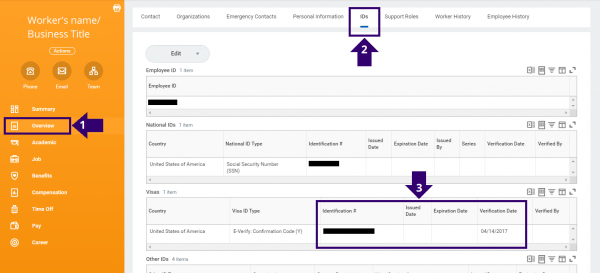
In Workday, you can determine if someone is E-Verify exempt by selecting Overview > IDs - the Visa ID Type column in the Visas table will read “E-Verify Exempt.” (If an employee IS I-9/E-Verify exempt, but Workday does not indicate “E-Verify Exempt,” please contact the Payroll Office.)
⇒ If the employee is exempt from the E-Verify requirement, stop here - you do not need to submit a case in E-Verify, and no additional E-Verify action is required on your part, for this employee.
⇒ If the employee is not exempt from the E-Verify requirement, move on to Question 3.
- Question 3: Does the employee already have an E-Verify authorization on record?
Many employees already have an E-Verify authorization on file, and employees who have worked at the UW without a break in service only need to be processed through E-Verify the one time. Indeed, multiple E-Verify authorizations for the same employee can result in financial penalties from DHS.
I-9 Coordinators can confirm in Workday whether an employee has already been authorized by E-Verify. Per the screenshot below, from the employee’s profile page, select Overview > IDs – if the employee has an E-Verify authorization on file, the Visa ID Type column in the Visas table will read “E-Verify: Confirmation Code (Y).”
⇒ If the employee already has an E-Verify authorization on record, move on to Question 4.
⇒ If the employee does not already have an E-Verify authorization on record, skip to the “Before You Start…” section of this webpage, below. You will need to open a case in E-Verify for this employee.
- Question 4: Has the employee had a break in service from the UW?
Regardless of whether the employee has an E-Verify authorization on file, you will need to open a new E-Verify case for any employee who has a break in service form the UW (i.e., been terminated and rehired).
⇒ If the employee has had a break in service from the UW, move on to the “Before You Start…” section of this webpage, below. You will need to open a case in E-Verify for this employee.
⇒ If the employee has not had a break in service from the UW, stop here - you do not need to submit a case in E-Verify, and no additional E-Verify action is required on your part, for this employee.
Before You Start…
Now that you know for which employees you need to initiate an E-Verify check, you will need the following before beginning the verification process:
- Information from the employee’s completed Form I-9 in Workday
- The I-9 must be completed in Workday before creating a case in E-Verify
- Note: the documents in Section 2 of the Form I-9 cannot be expired
- The employee’s Social Security number (SSN)
If the employee does not already have an I-9 in Workday (whether the employee is a new hire or a long-time UW employee), a new Form I-9 will need to be completed in Workday before you can use E-Verify - see the step-by-step guidance in the Complete Form I-9 User Guide. Contact the employee to bring their current identification documents in person to their I-9 Coordinator, and then to you, to complete the Form I-9 as soon as the department is notified by the OSP that the federal contract contains the E-Verify clause.
If the employee does have a completed I-9 in Workday, but the identification documents the employee originally used are expired, Section 2 of the Form I-9 will need to be updated in Workday before you can use E-Verify - see the step-by-step guidance in the Amend Form I-9 User Guide. Contact the employee to bring their current identification documents in person to their I-9 Coordinator, and then to you, to update the Form I-9 as soon as the department is notified by the OSP that the federal contract contains the E-Verify clause.
The E-Verify system requires that the employee have a valid Social Security number. If a newly-hired employee does not yet have an SSN, complete the Form I-9 as required and then wait until the employee obtains a SSN before running the E-Verify inquiry. Instruct the employee to provide you with the new SSN as soon as possible. In the meantime, because their unit will have completed the I-9 process with the new employee to verify work authorization, your employee can work temporarily without the SSN or the verification from E-Verify.
Plan Ahead: If the employee presents/presented identification documents from List A of USCIS’s list of Acceptable Documents to complete their Form I-9 (i.e. a US passport/passport card, a Permanent Resident Card, or an Employment Authorization Document – a “photo match” will be triggered in E-Verify and you will need to confirm that the photo in E-Verify matches the photo on the identification document. In addition, you will need to submit a copy of the front and back of the identification document (for US passports, copy the Passport ID page and the Passport Barcode page) with a copy of the E-Verify Employment Authorization form to the Payroll Office (see the “Final Steps for E-Verify Authorized Employees” section, below).
Then, Initiate the E-Verify Check
Once you know who needs an E-Verify authorization, and you have all the information you will need to complete the E-Verify check, create an E-Verify case for the employee by following the steps found in Section 2.2 of the E-Verify User Manual.
Once submitted, the E-Verify system compares the information you entered with SSA and DHS data. You will get results within a few seconds of submitting your E-Verify case. Results include Employment Authorized, Verification in Process, Tentative Nonconfirmation, Case in Continuance, Close Case and Resubmit, and Final Nonconfirmation, and each result requires different actions. Follow the guidance found in the E-Verify User Manual, Sections 3.0 and 4.0, as appropriate for the returned case results.
Final Steps for E-Verify Authorized Employees
Once the E-Verify system returns an "Employment Authorized" result for the employee, you will need to send the following information to the Payroll Office (Campus Box 359555) as soon as possible:
- A copy of the E-Verify confirmation page
- A copy of the Form I-9 identification document, if the employee used a document from List A (copies are not required for I-9 List B and C documents)
Upon receipt of the above, the Payroll Team will enter the E-Verify confirmation information into the ID Visa section of Workday.
Please note: Failure to comply with DHS audit requirements could result in the department losing the budget, separation of the employee(s), and/or monetary fines from DHS.