Manage ECC Effort Coordinator Assignments
- Overview
- Add a New Coordinator to a Cost Center
- Assign or Change the Primary Coordinator of a Cost Center
- Remove a Coordinator from a Cost Center
Overview
This webpage provides step-by-step instructions to manage Coordinator assignments in the Employee Compensation Compliance system (ECC). The ECC Coordinator role is required for this process.
Note: The existing Coordinator and new Coordinator must share the same default cost center. To check, search for the individual’s name in Workday. Then, go to "Overview", "Organizations", and look at the "Cost Center" field for their default cost center.
Add a New Coordinator to a Cost Center
- Log into ECC.
- Go to the “Manage” tab and click on “Department Dashboard".
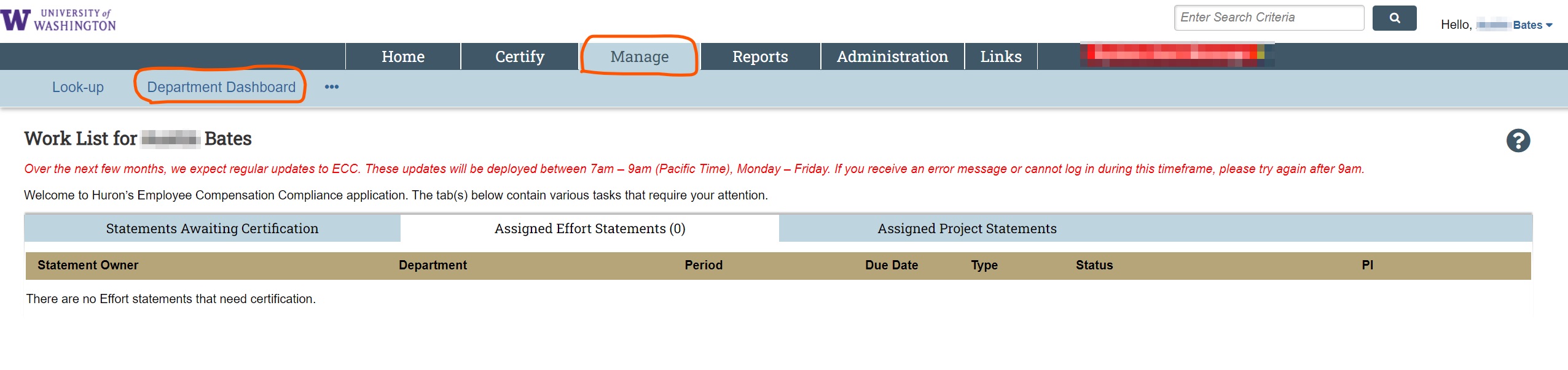
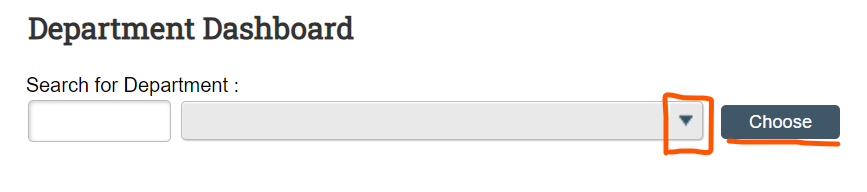
- Enter the cost center where you want to manage coordinators from the drop-down menu and click the “Choose” button.
- Click on the “Department Information” tab.
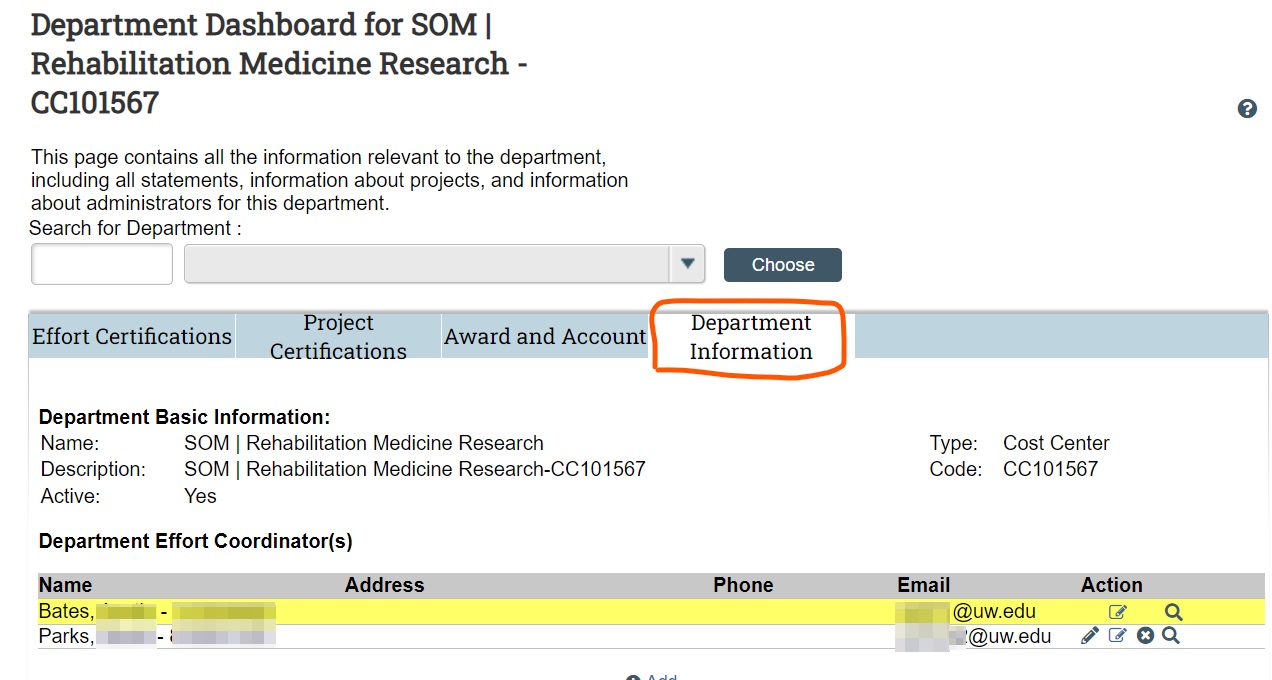
- Click the “Add” button.

- Type in the last name *space* first name or Employee Identification Number (EID) of the person you want to add, then select them from the drop down, and click “Save”.

Note: If you receive the message “No Data” returned, the individual entered is not within the cost center that ECC associates with your profile.
- The new Coordinator should now appear in the list of Coordinators for the cost center.

The individual added to ECC must also have the ECC Coordinator role. If they do not already have this role, the Post Award Fiscal Compliance Team will be notified automatically within 24 hours of them being added to the cost center and will subsequently give them the needed role.
Assign or Change the Primary Coordinator of a Cost Center
- Log into ECC.
- Go to the “Manage” tab and click on “Department Dashboard".
- Enter the cost center where you want to manage coordinators from the drop-down menu and click the “Choose” button.
- Click on the “Department Information” tab.
- Click the pencil icon on a given coordinator’s row to make them the Primary Coordinator.
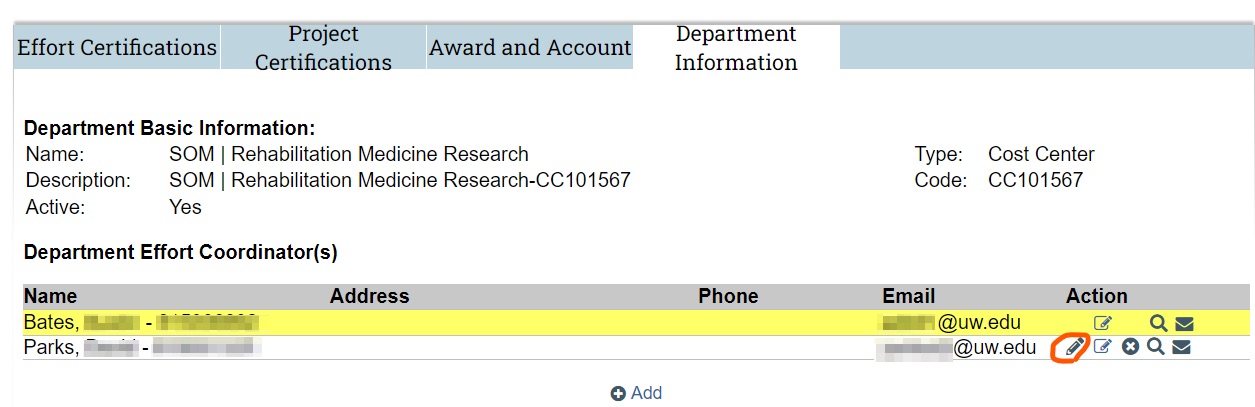
The yellow highlighted individual will change, indicating the Primary Coordinator has changed.
Remove a Coordinator from a Cost Center
Reach out to effortreporting@uw.edu with the full name and EID of the Coordinator who needs to be removed. Keep in mind that coordinator assignments to specific cost centers are necessary for users with broad view level access to ECC, so you may see names you do not recognize on the list.